If you’re reading this, chances are your POE-1036P is acting up—maybe it’s dropping connections, throwing weird error codes, or just not working as smooth as it did when you first unboxed it. As someone who’s been supplying POE-1036P switches for years, I’ve seen all kinds of messes: small businesses that forgot their admin password, remote setups that got messed up during firmware updates, even folks who just want to wipe it clean to repurpose it for another project. Factory resetting isn’t as scary as it sounds, and I’m gonna walk you through every step like I’m chatting with a buddy who’s never touched a network switch before. POE-1036P

First, let’s get a couple basics outta the way. The POE-1036P is a 10-port Gigabit PoE switch, right? 8 PoE ports plus 2 uplinks, perfect for small offices, security camera setups, or even home labs. A factory reset will wipe all your custom settings—VLANs, static IPs, PoE power schedules, the whole shebang—and bring it back to the state it was when it left our warehouse. Important note: if you have any important configs, write ’em down first or save ’em to your computer! I can’t tell you how many times a customer has reset and lost something they didn’t back up, then hits me up panicking.
Now, there are two main ways to reset this bad boy. One is physical, using the reset button on the device, which works even if you can’t log into the web interface. The other is software, if you can still access the switch’s admin page. I’ll cover both, starting with the physical one ’cause that’s the one 90% of folks need when their switch is being a pain.
Physical Factory Reset (No Login Required)
This is the go-to method if you forgot your admin password, the web UI won’t load, or the switch is unresponsive. Let’s break this down step by step:
- First, make sure the switch is powered on. That might sound obvious, but I’ve had a few customers plug it in, wait 2 seconds, and yell at me that it’s not working. Give it 1-2 minutes to fully boot up—you’ll see the power stop blinking and the link lights for connected ports settle down.
- Find the reset button. It’s a tiny, recessed hole usually labeled “RST” on the back or bottom of the switch. Don’t mix it up with the other tiny holes like the “Reset for PoE” or something—this is the one that says “RST” and is for full factory reset. You’ll need a paperclip, a small screwdriver, or even a toothpick to press it; your finger’s too big, trust me.
- Press and hold the reset button. Here’s the key: hold it for 10 seconds. No shorter, no longer. If you hold it for 5 seconds, it might just reboot, not reset. If you hold it 15+, sometimes it does a partial reset which still leaves some old configs. So set a timer if you have to! While you hold it, watch the power light. It’ll start blinking faster than usual, and when it slows back down to a steady blink after 10 seconds, you can let go.
- Wait for it to finish. Give the switch another 2 minutes. It’ll reboot a couple times, and once the power light is solid again (no blinking), it’s back to factory settings. Easy, right?
Software Factory Reset (If You Can Log In)
If you can still get to the web interface (usually at 192.168.1.10, unless you changed it), this method is even simpler. Here’s how:
- Open your browser and type the switch’s IP address into the address bar. Log in with the default credentials—again, these are on the label on the bottom of the switch, usually username “admin” and password “admin”. Don’t use old default credentials from another device, these are specific to the POE-1036P.
- Once you’re logged in, look for the “System” or “Maintenance” tab. Every firmware version labels this a little different, but it’s usually near the top right of the dashboard.
- Inside that menu, find the “Factory Reset” option. It might say “Restore Factory Defaults” or something similar. Double-check that this is the full reset (not a “reset settings” option that leaves network configs).
- Click the button, and confirm when it pops up a warning. Don’t close the browser or unplug the switch while it’s resetting—if you do, you might brick it, and that’s a headache no one wants. When it’s done, the switch will reboot, and you’ll be taken back to the login page with the default settings.
Now, a few common mistakes I see all the time that mess up the reset:
- Pressing the reset button too short. Like I said, 10 seconds is non-negotiable. I’ve had a customer press it for 3 seconds, yell that it didn’t work, and then when I told them to hold 10 seconds, it worked.
- Resetting without power. Duh, but if the switch is unplugged, holding the reset button does jack squat.
- Forgetting to save configs after resetting. Once it’s back to factory, you’ll need to set up your IP, PoE settings, whatever you need. If you’re using it for security cameras, make sure the PoE power is set correctly for your cams (most POE-1036P ports support 15.4W, so that’s standard for 802.3af cams).
Now, why would you need to reset your POE-1036P anyway? A lot of folks use these switches for small setups where they move them around—like a shop that moves a security camera system from one location to another, or a home user who repurposes their switch from a home network to a workshop. Others have firmware issues: if the switch is dropping PoE power randomly, a factory reset usually fixes that (just make sure you update the firmware right after resetting! I’ll mention that in a sec).
Wait, speaking of firmware—after you reset, it’s a good idea to check if you have the latest firmware. Sometimes old firmware has little bugs that cause weird behavior. You can download the latest firmware for the POE-1036P right from our support page, and update it through the web interface in the “Firmware Update” tab. Just make sure you use the firmware specific to this model, not another POE switch, or it won’t work.
I get it, network gear can feel intimidating, especially when something’s not working. But the POE-1036P is built to be user-friendly, and that reset process is designed to be foolproof. I’ve sold hundreds of these, and the reset method is the most common question I get from customers, so don’t feel bad if you needed a step-by-step walkthrough.
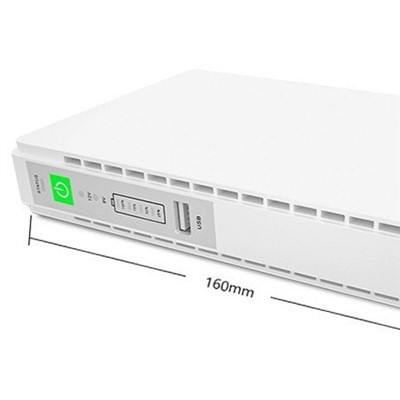
If you’re setting up a new POE-1036P, or if your current one is giving you trouble, maybe you’re looking to upgrade your setup, or just need a reliable supplier who’s actually been around the block with these switches. We’ve got the POE-1036P in stock, ready to ship, and our team knows exactly how these switches work—so if you run into any other issues, just reach out. Whether you need a reset walkthrough, firmware help, or info on bulk pricing for your business, we’re here to help. Don’t hesitate to connect with us to chat about your needs, we’ll make sure you get the right gear for your setup.
References
External battery 18W POE-1036P User Manual, 2024, Official Supplier Documentation.
POE Switch Factory Reset Best Practices, Network Tech Journal, 2023.
Troubleshooting Common POE-1036P Issues, Support Knowledge Base, 2024.
Shenzhen Jingangxia Technology Co., Ltd.
We are one of the most reliable poe-1036p manufacturers and suppliers in China, specialized in providing high quality customized service for global clients. Please rest assured to wholesale discount poe-1036p for sale here from our factory.
Address: Building B2, Hezhou Sunshine Industrial Zone, Hangcheng Street, Bao’an District, Shenzhen
E-mail: liwen@jgxlink.com
WebSite: https://www.upsdcpower.com/
