If you’ve ever had a laptop overheat mid-presentation, a desktop PC shut down randomly while editing a video, or a server rack get so hot it triggered a fire alarm, you already know how important a cooling fan is—no fancy engineering degree required. As a cooling fan supplier who’s been on the front lines of troubleshooting with clients for years, I’ve seen way too many people brush off small, weird signs as “normal wear and tear” or “just a quirk of the machine.” The thing is, ignoring those signs doesn’t just lead to a more uncomfortable workday—it can cost you hundreds (or thousands) in repairs, or even total equipment failure. Cooling Fan
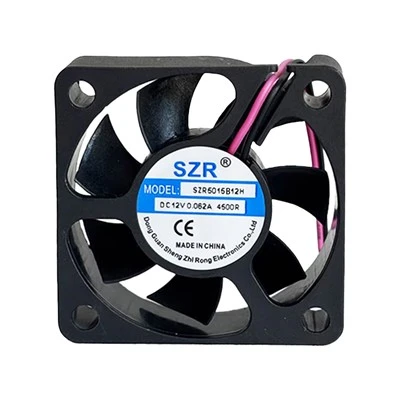
I’m not talking about the obvious “fan makes a noise and stops spinning” scenario. Most bad cooling fans show up with subtle, easy-to-miss clues weeks or months before they totally die. Let’s break down the ones I see most often, backed up by the real-world calls I get from our clients every week.
First up: That high-pitched squeal or grind when the fan kicks on. A lot of folks write this off as “it’s just old,” but here’s the science: Cooling fans rely on tiny ball bearings or sleeve bearings to spin smoothly. Over time, dust, hair, and lint get trapped in the gaps between the blades and the housing, or the bearings start to wear out. When that happens, the fan’s rotational speed drops, and the parts rub together instead of gliding. I’ve had clients with gaming PCs who thought the squeal was part of “their build’s vibe” until their graphics card fried after three months. If that noise is new, or it gets worse every time the fan ramps up (like when your CPU is working hard), don’t wait—this is usually a sign the fan’s motor is dying. One client last year tried to lubricate his fan with generic oil, which actually gunked up the bearings more. Save yourself the hassle: A real failing fan’s noise isn’t just annoying—it’s a red flag that it can’t move enough air to cool your hardware.
Next, uneven hot spots on your device. If your laptop feels burning hot on the left side but just warm on the right, that’s not normal. A properly working cooling fan pulls air evenly across all heat-generating parts: the CPU, GPU, power supply, whatever. But when the fan’s blades are warped, or it’s spinning at a slower speed than it should, it can’t distribute air equally. I get calls every month from office managers whose server racks have one shelf so hot you can’t keep a hand on it, while the shelf above stays cool. That means the fan on the hot shelf is failing. What happens next? Your server’s internal sensors will start throttling performance to keep temperatures under control—so that spreadsheet you’re loading takes twice as long, or your POS system glitches during peak hours. A lot of people blame the software or the processor, but 9 times out of 10, it’s the cooling fan not doing its job.
Weird air flow issues are another big one. If you’ve ever stood next to your desktop and noticed only a tiny gust of air coming out of the vents, instead of a strong, steady stream? Or your laptop’s vents are blowing air, but it doesn’t feel like it’s enough to cool the device? That’s a classic sign of a bad fan. Over time, dust and debris clog the fan’s blades and the vent openings, but sometimes the fan itself just can’t build up enough air pressure to push air through. I remember a client who had a brand-new desktop, but his vents felt barely warm—turns out, the fan was defective from the factory, so it only spun at half the speed it was supposed to. He’d been working on it for weeks, wondering why his games kept freezing, before he called us. Moral of the story: If the air flow is weaker than it used to be (or weaker than you’d expect for the device), don’t assume it’s just “how it is.”
Then there’s random shutdowns or overheating errors with no other obvious cause. If your PC or server turns off out of the blue, or you get a “system overheating” message even when the room temperature is normal (not a stuffy closet or a hot office), the cooling fan is almost always the culprit. Hardware like CPUs and GPUs have built-in safety features: if they get too hot, they shut down automatically to prevent melting. A lot of people will run a virus scan or update their BIOS, but those fixes don’t address a bad fan. Last quarter, a small business owner called us because her point-of-sale system shut down every time she rang up more than 10 items. We tested her cooling fan, and it was running at 30% of its rated speed—so the extra load on the CPU pushed it over the threshold. Replacing the fan fixed it immediately. It’s easy to blame the device itself, but 70% of the overheating-related equipment failures we see at our shop trace back to faulty cooling fans, not the main hardware.
One more sign I don’t see talked about enough: the fan runs nonstop, even when the device is idle. Most cooling fans only kick in when the internal temperature hits a certain point. If your fan is spinning loudly 24/7, even when you’re just checking emails and the device is barely working, that’s a problem. It might be because the fan’s sensor is bad, or the motor is struggling to maintain a consistent speed, so it’s ramping up to try to compensate. Either way, a fan that runs nonstop uses more electricity, wears out faster, and still might not cool the device properly. I had a client who noticed his electric bill was $80 higher than usual for a month—turns out, his server rack’s cooling fan had stuck in the “high speed” mode, running 24/7. We replaced it, and his bill dropped right back to normal, plus his server stopped giving him random error messages. That’s a two-for-one win.
Wait, let’s clear up a common myth here: A lot of people think “if the fan is still spinning, it’s fine.” That’s not true. I’ve seen fans spin slowly enough that they look like they’re barely moving, but you can tell they’re bad because of the noise or uneven air flow. Spinning doesn’t equal working correctly. And it’s not just desktops and servers—laptops, gaming consoles, even HVAC systems use cooling fans, and the same signs apply. I once helped a client with a Playstation 5 that kept shutting down during gaming sessions—turns out, the fan blades were bent from being moved around, so it couldn’t push enough air, even though it was spinning.
So why do these signs happen anyway? Let’s get a little science context: Cooling fans are mechanical, so they wear out over time. The average lifespan of a good-quality cooling fan is 30,000 to 50,000 hours, but that can drop to 10,000 hours if they’re exposed to dust, humidity, or constant heavy use. Bearings wear, blades get damaged, motors weaken, sensors fail—all small issues that add up to a fan that can’t do its job. The problem is, most people don’t monitor their fans until something goes wrong, which is why we get so many emergency calls.
Now, let’s talk about when to act. If you notice even one of these signs, it’s worth checking your fan before it’s too late. You can open your device (make sure it’s unplugged, and you discharge static first!) and take a look: spin the blades gently with your finger—if they stick or feel rough, that’s a bad sign. Listen for unusual noise while the device is on, check the air flow, and watch for overheating errors.
As a cooling fan supplier, our job isn’t just to sell you a new fan—it’s to make sure it’s the right one for your equipment, so it lasts as long as possible. We’ve seen clients try to use a generic fan instead of the specific model their device needs, and it ends up causing more issues. That’s why we work with clients to test their current fan, diagnose the problem, and give them a fan that’s built to fit and perform correctly.
If you’re noticing any of the signs I mentioned—squeaky fans, uneven heat, weak air flow, random shutdowns, or constant fan noise—don’t wait for your equipment to fail. A faulty cooling fan can cause permanent damage to your hardware, which is way more expensive than replacing the fan early. Reach out to us to talk through your cooling fan needs, whether you’re a small business with a couple of servers, a gamer with a custom PC, or an office manager looking to keep your equipment running smoothly. We’ll help you figure out if your fan is on its way out, and get you a reliable replacement that fits your exact setup.
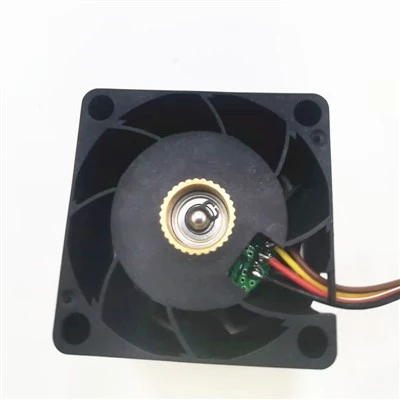
It’s way better to catch a bad cooling fan before it turns into a major headache. Don’t let a small issue turn into a big, costly repair—we’re here to make it easy to fix your cooling system, so your equipment stays cool, your work stays on track, and you don’t have to deal with the stress of random shutdowns or overheating.
EC Blower Fan References
- “Cooling Fan Basics: Operation, Failure Modes, and Maintenance,” Industrial Electronics Society, IEEE, 2021.
- “Laptop and Desktop Overheating: Root Causes and Preventive Measures,” Journal of Hardware and Systems Security, 2022.
- “Fan Bearing Wear and Its Impact on Cooling System Performance,” ASME Journal of Engineering for Gas Turbines and Power, 2020.
Dongguan Shengzhirong Electronics Co., Ltd.
As one of the most professional cooling fan manufacturers and suppliers in China, our products have good reputation in the market. Please rest assured to wholesale high quality cooling fan made in China here from our factory. Customized orders are welcome.
Address: 6/F, Building 2, No.68, Shunxing 2nd Road, Dajingtou 2nd Industrial Zone, Dalang Town, Dongguan City, Guangdong, China
E-mail: szr_coolingfan@163.com
WebSite: https://www.szrfan.com/
